
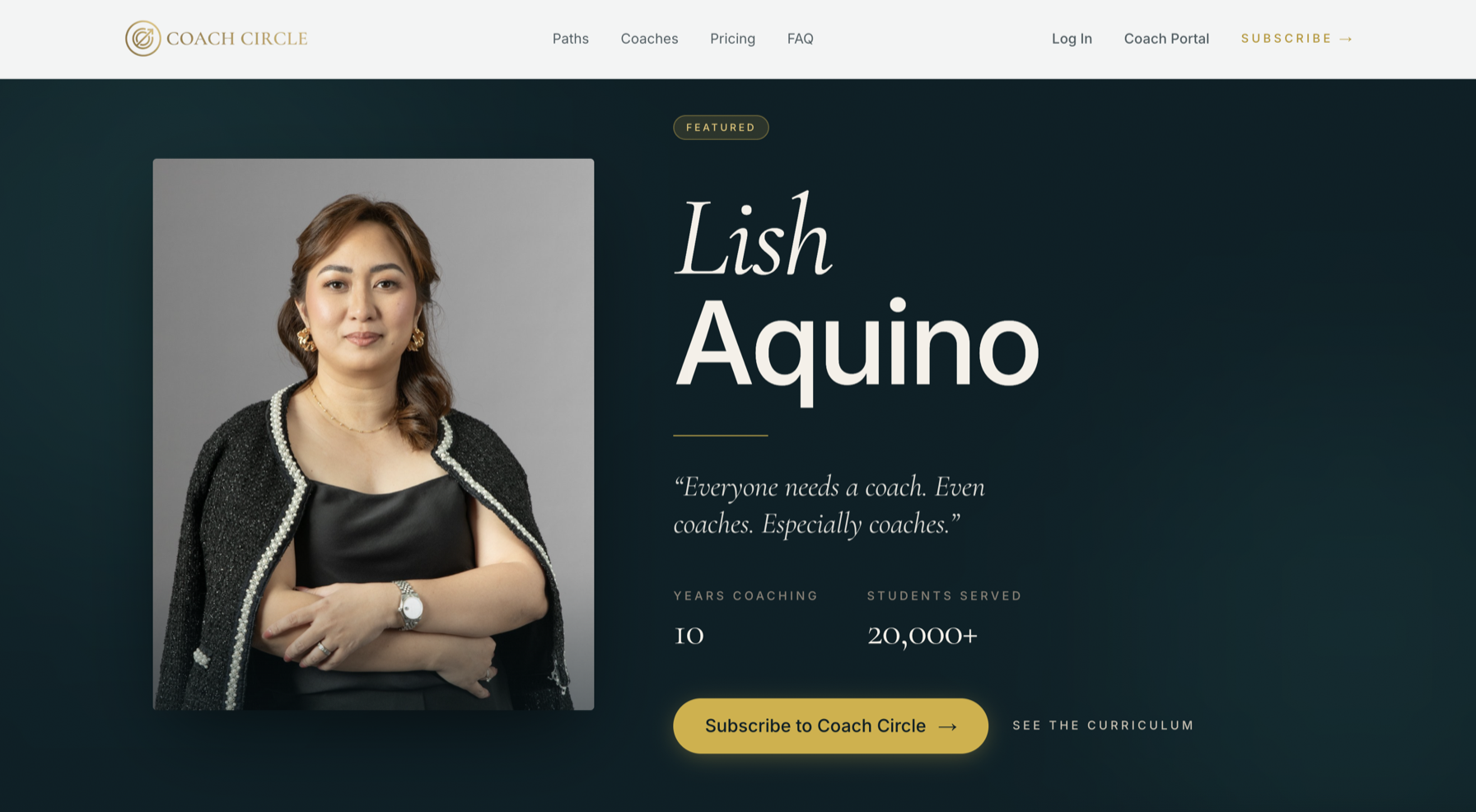
Your profile is what students see before they click into any of your courses. Their first impression of you happens here — your photo, your name, your bio, your numbers, your links. Ten minutes of work, and it’s the biggest thing you can do for conversions.
Why this matters: coaches without a photo don’t appear in the homepage rolling banner or the founding-coach rail. You still show up in the public catalog and on /coaches (with a silhouette placeholder), but not in the high-discovery spots. Add a real photo to unlock the full reach.
Where to edit your profile
Sign in to your coach portal at /me. Click Edit profile on your dashboard, or go directly to /me/profile/edit.
The form is split into four sections. Save once at the bottom and every field updates together. Changes go live on your public page immediately — no review queue.
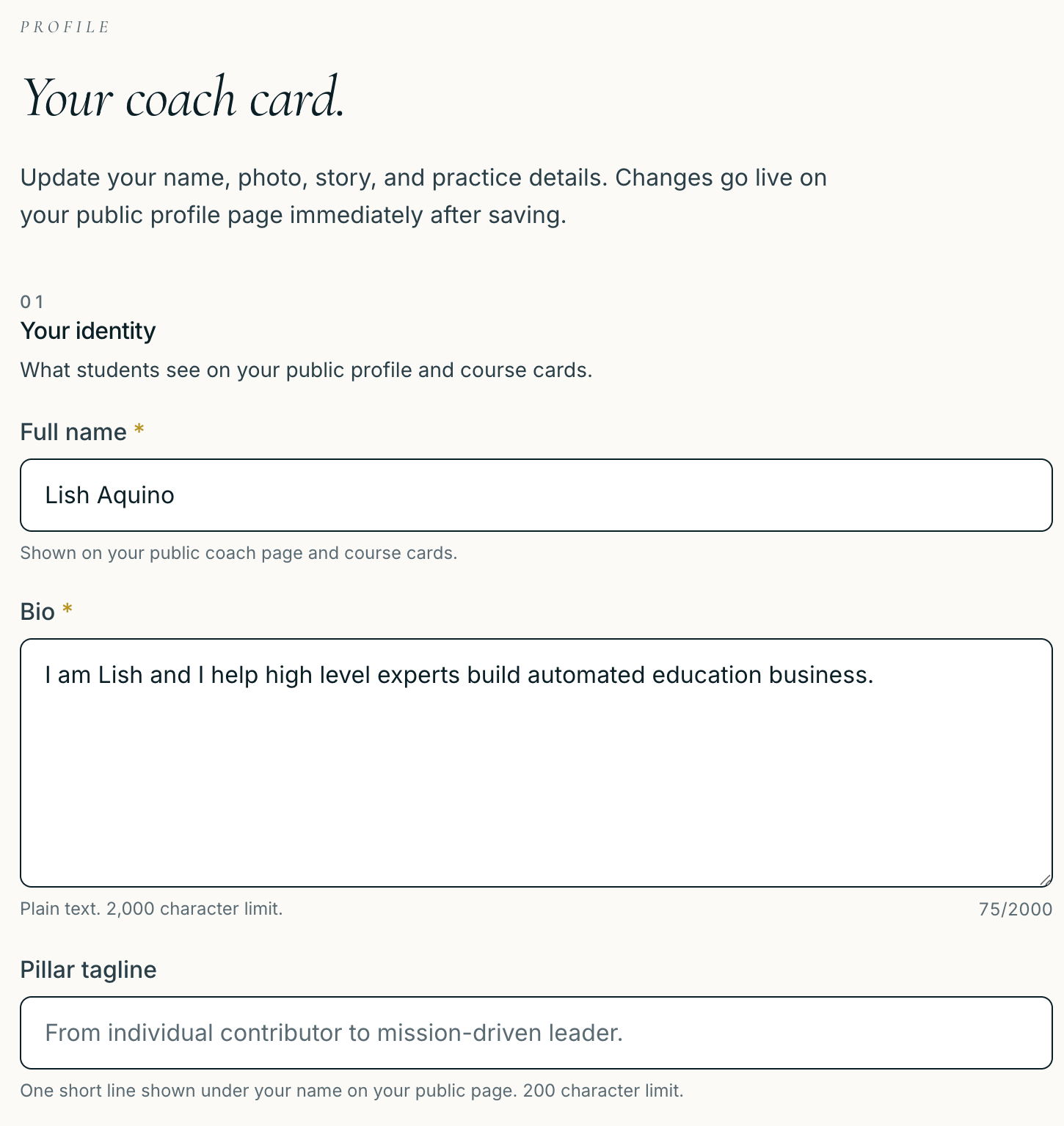
Section 01 — Your identity
Full name
The name students see on your profile and on every course card. Capitalise it like a real human name (“Migs Flores”, not “migs flores 1980”). This is what shows up in search results too.
Bio
2 to 4 sentences. Lead with what makes you different and who you serve — not your full resume. Plain text, 2,000 character limit (you won’t hit that).
A pattern that works:
- One sentence on what you do.
- One sentence on who you do it for.
- One sentence on the result your students see.
- Optional: a credibility line (founder of X, X years coaching).
Pillar tagline
One short line shown right under your name on your public coach page. Think of it as your positioning statement — the single sentence a student should remember after closing the tab. Max 200 characters; the best ones land under 80.
Examples that work:
- “From individual contributor to mission-driven leader.”
- “Build a business that runs without you.”
- “Funnels and media buying that convert.”
Leave blank if you’d rather let the bio carry it. The page still renders fine — your name just sits alone.
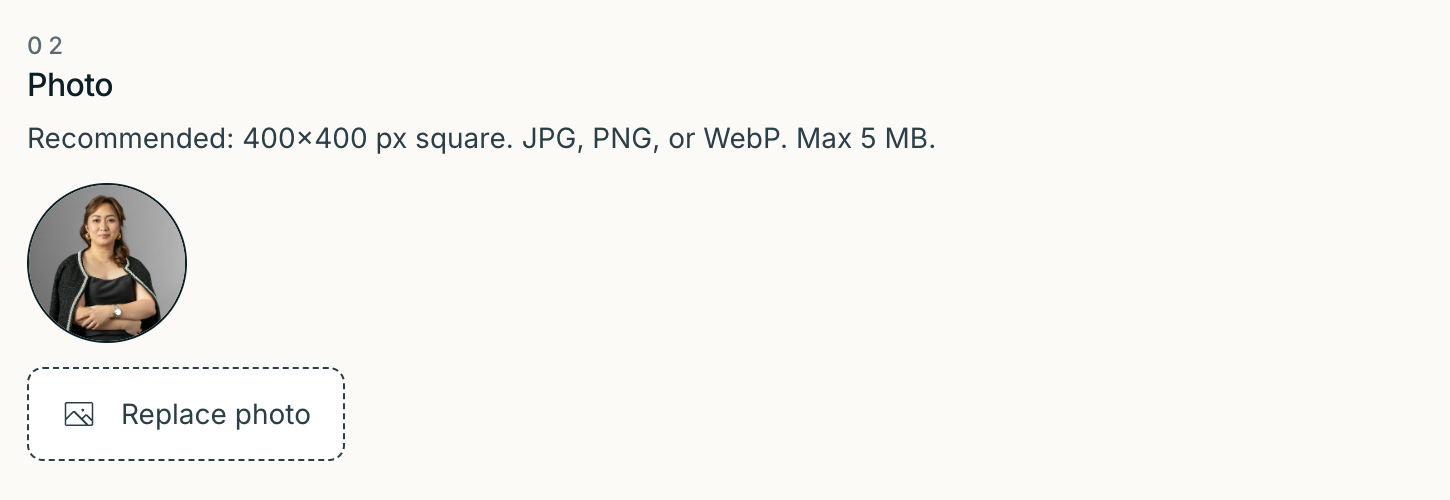
Section 02 — Your photo
400×400 px square works best. JPG, PNG, or WebP. Max 5 MB. Headshot or shoulder-up. Plain background or lifestyle background — both work, as long as your face is clear.
Don’t have a good photo? Stop reading, stand near a window with good natural light, take a phone selfie or have someone take one, come back. A real photo from your phone beats a placeholder every time. You can replace it with a proper editorial portrait later.
Section 03 — Your practice
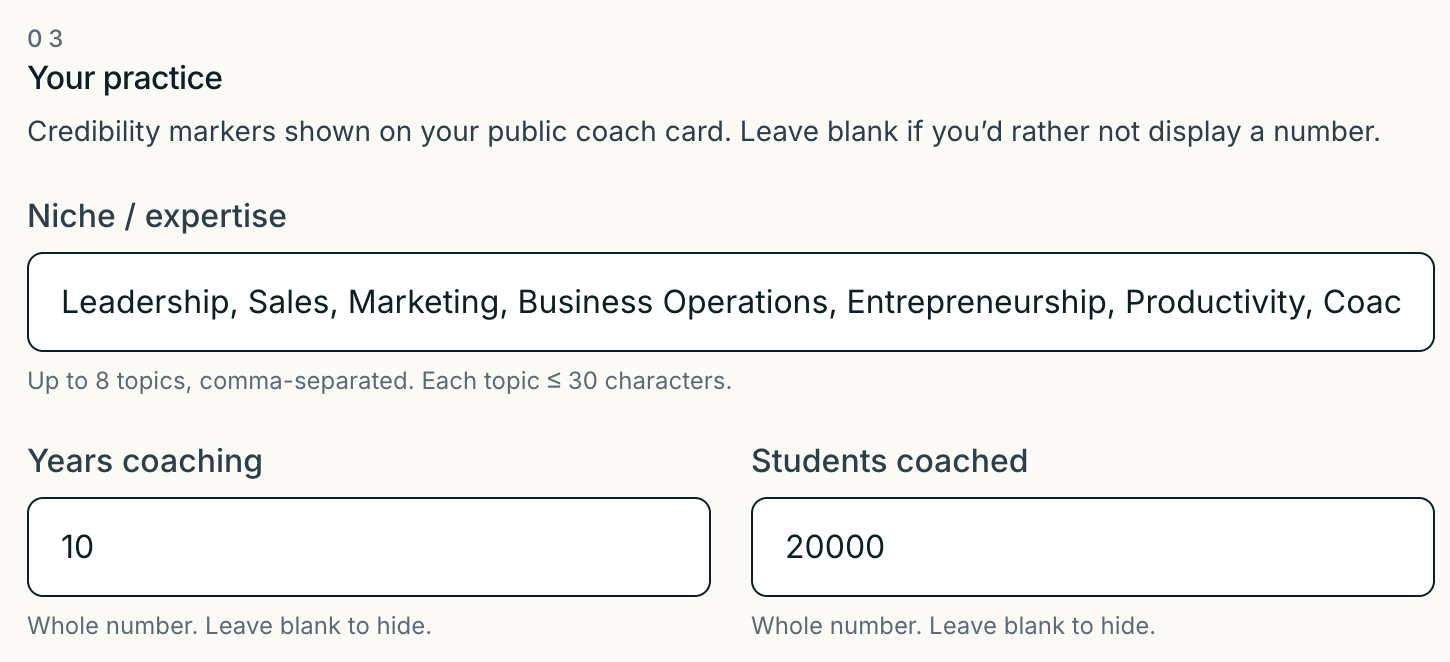
Three optional credibility markers that appear on your public coach card. Leave any of them blank to hide them on the public page — students don’t see “0” or “—”, the field just disappears.
Niche / expertise
Up to 8 topics, comma-separated. Each topic should be 30 characters or fewer. These render as link chips on your public page and feed the topic filter on /catalog. Pick the words students would actually search for.
Good examples:
- Leadership, Sales, Operations
- Brand strategy, Funnels, Paid ads
- Mindset, Confidence, Money
Avoid stacking five variations of the same word (“Sales, Selling, Sales coaching, Sales strategy, Sales ops”) — students read it as keyword-stuffing.
Years coaching
A whole number, 0 to 80. The years you’ve been actively coaching — not your total years of experience in your domain. Be honest; this builds trust over time as your students cross- reference what they hear from you.
Students coached
A whole number, your cumulative count. Group programs count. 1-on-1s count. Workshops you led count if the participants got real coaching outcomes. Off-the-cuff Q&A doesn’t.
Round, don’t inflate. “2,800” reads as honest. “3,000” reads as rounded. “25,000+” with no way to back it up reads as a red flag. If you’re not sure, leave the field blank.
Section 04 — Where students can find you
Six optional social URL inputs: Website, Instagram, Facebook, LinkedIn, YouTube, and TikTok. Each one you fill renders as a chip on your public page. Each one you leave blank is hidden.
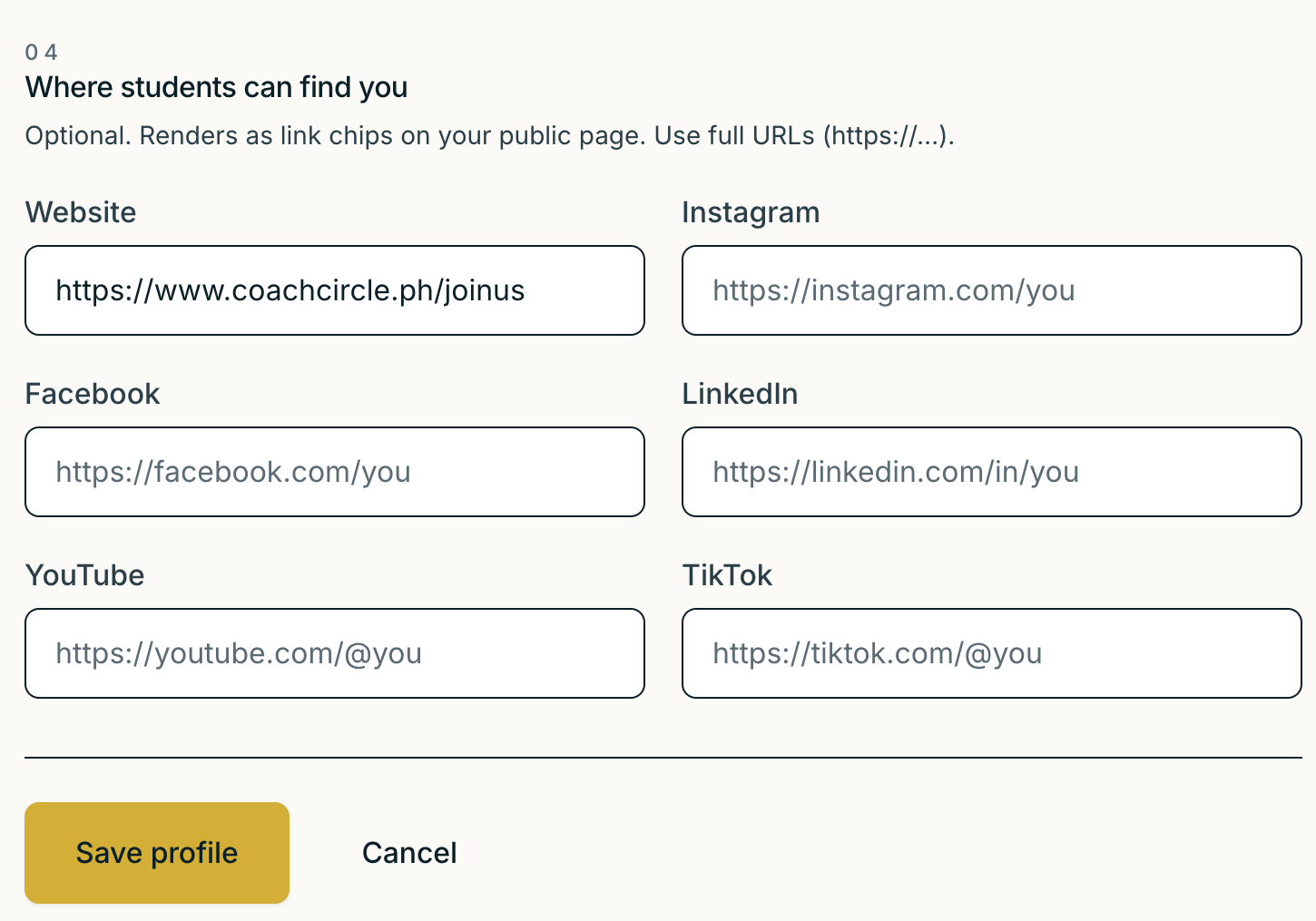
Use the full URL (start with https://), not just your handle. The form rejects bare handles because we can’t infer the platform from “@you” alone.
- Website — https://yoursite.com
- Instagram — https://instagram.com/yourhandle
- Facebook — https://facebook.com/yourpage
- LinkedIn — https://linkedin.com/in/you
- YouTube — https://youtube.com/@yourchannel
- TikTok — https://tiktok.com/@yourhandle
Which to fill first? Whichever one you actually post on. A single live link beats four stale ones. If your Instagram is dead and your LinkedIn ships weekly, only add the LinkedIn.
How to actually do it
- Sign in at /sign-in.
- From the dashboard, click Edit profile at the bottom of the page (or visit /me/profile/edit directly).
- Fill in Section 01 — full name, bio, pillar tagline.
- Section 02 — click the photo picker and pick your headshot. Preview appears in the form.
- Section 03 — niche (comma-separated), years coaching, students coached. Leave any blank to hide on the public page.
- Section 04 — drop in the full URLs for the social platforms you actually post on.
- Hit Save profile. You’re live on the public page immediately.
- Open your public page at coachcircle.ph/your-slug in another tab to check it. Looks good? You’re done.
Common questions
Can I change my slug?
Not from the form yet — your slug is derived from your name at signup and stays stable so old links don’t break. Email success@coachcircle.ph if you need it changed.
I saved but my public page still shows the old version.
Hard-reload the public page (Cmd+Shift+R on Mac, Ctrl+Shift+R on Windows). Server-side caches refresh on save but your browser might still be serving the old HTML.
Can I add a video intro?
Not in the profile yet — for now, the closest analogue is your first preview lesson on your featured course (we surface it on your public page). Video intro on the profile itself is on the Phase 02 roadmap.
Next up
Profile is half the job. The other half is your first course. How to upload your first course →